If you experience a crash, bug, or performance issue with the Client while playing, you can easily send a report to our support team directly through the launcher.
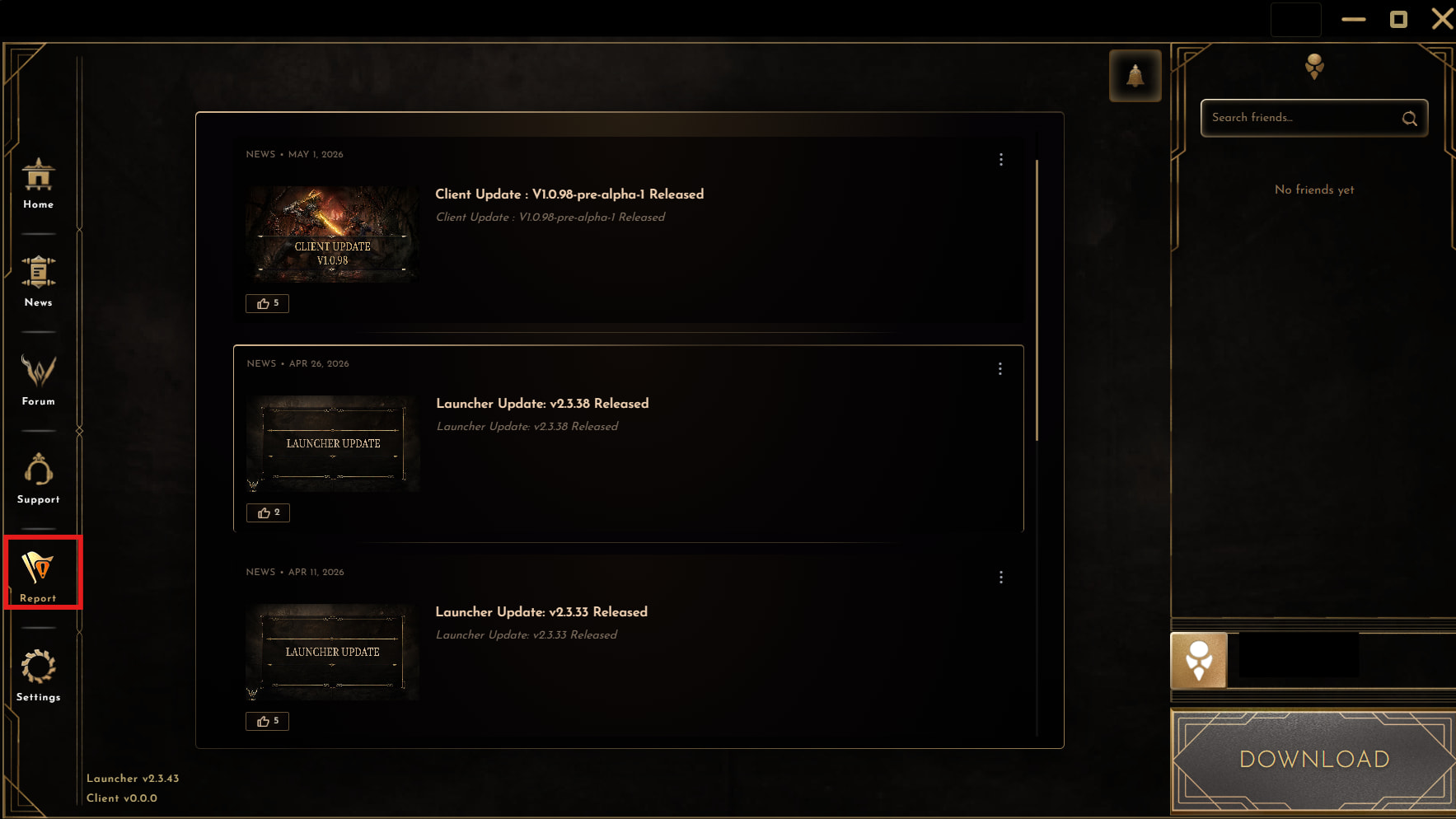
Step 1: Open the Launcher and navigate to the Report Menu
Locate and click the Report icon on the left-hand navigation sidebar of the launcher.
Step 2: Select Report Type
Click on Report Game from the pop-up menu that appears.

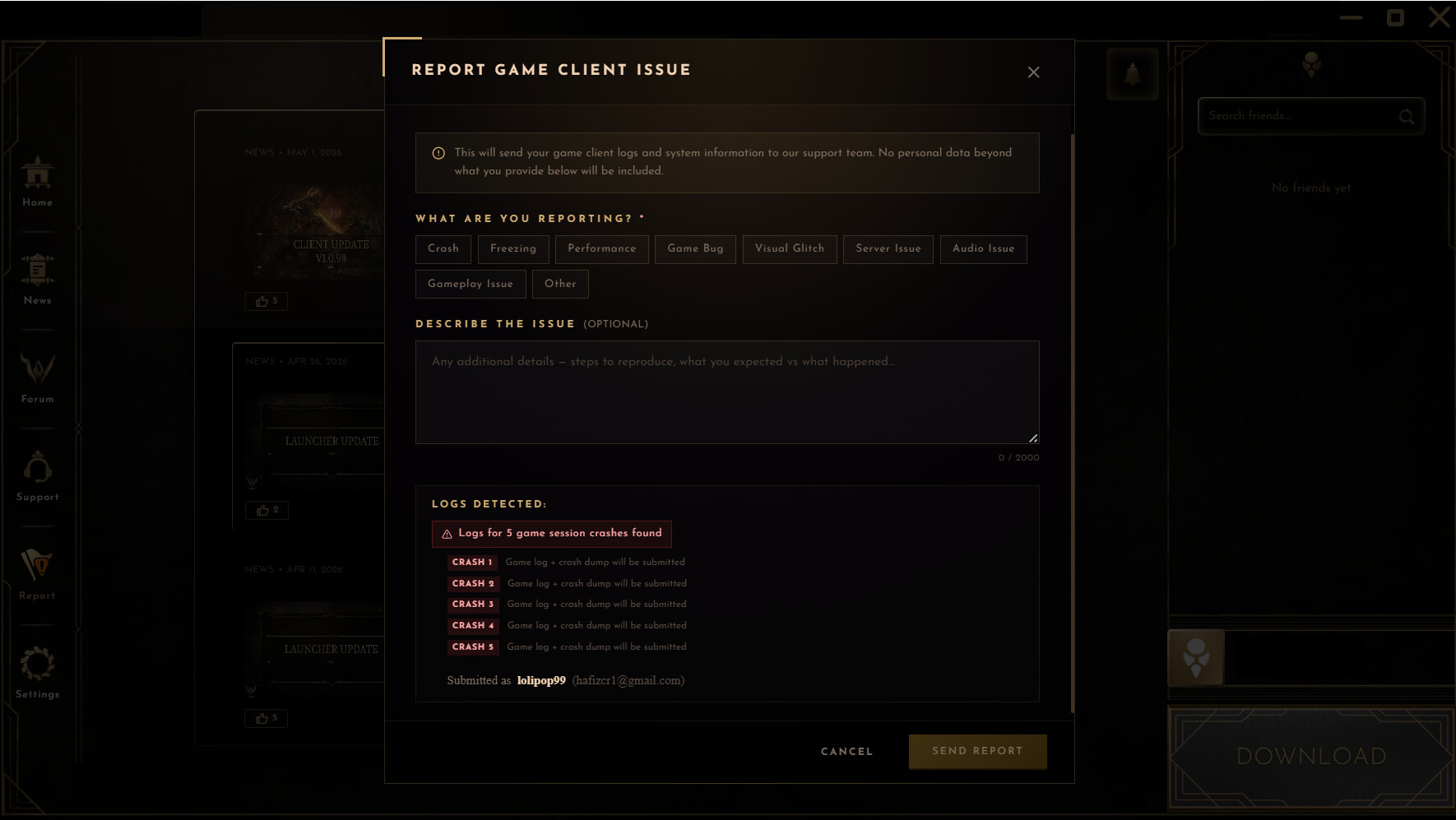
Step 3: Categorize the Issue
In the reporting window, select the category that best matches your problem under the “What are you reporting?” section (e.g., Crash, Game Bug, Visual Glitch).
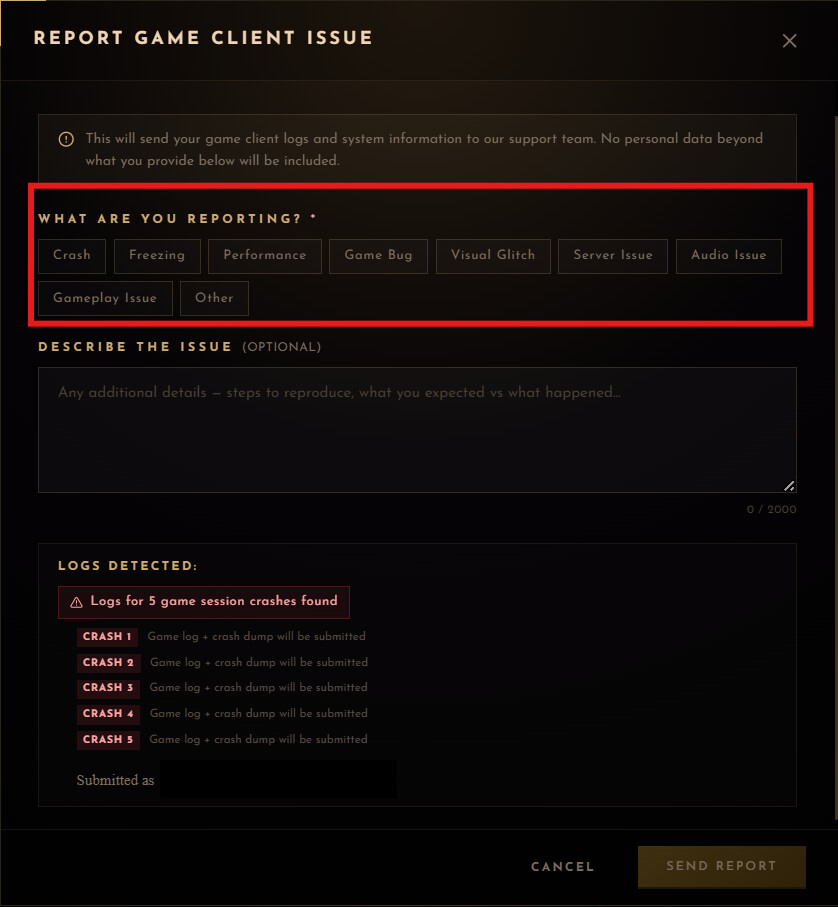
Step 4: Provide Details
Briefly explain the problem in the “Describe the Issue” box. Helpful details include steps to reproduce the bug and what you expected to happen vs. what actually happened.
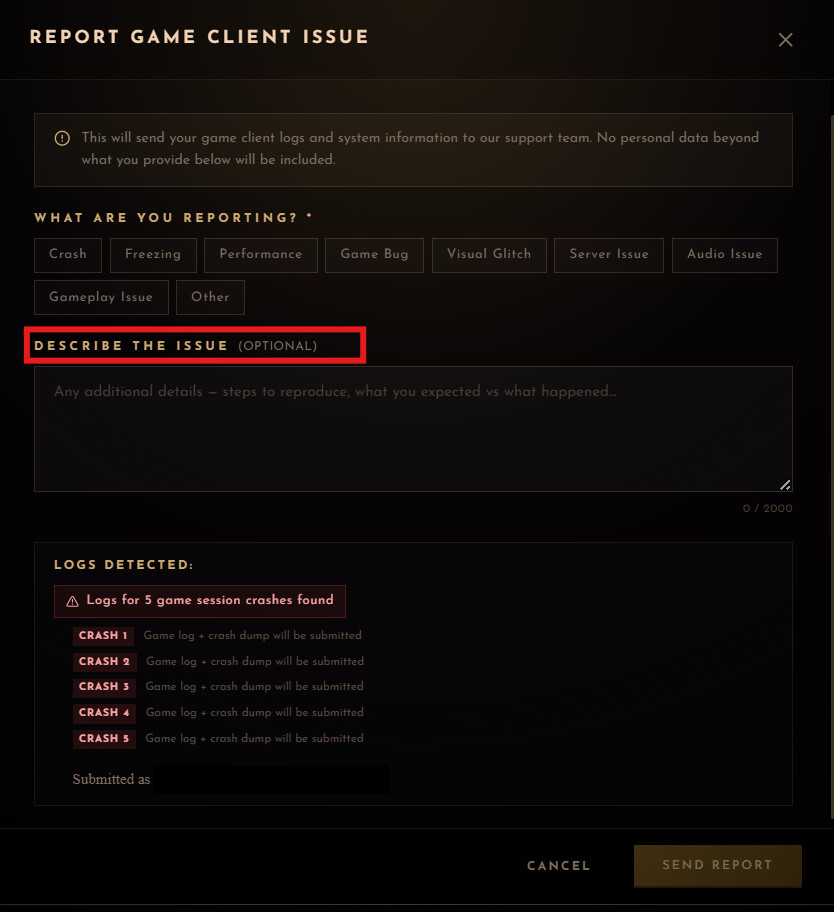
Note: If your game recently crashed, the launcher will automatically detect and attach the crash logs in the “Logs Detected” section—no manual uploading is needed!)
Step 5: Submit Your Report
Click the Send Report button at the bottom right corner of the window to submit your issue to our support team.
Examples of Helpful Bug Descriptions
Example 1: Reporting a Gameplay/NPC Bug
Expected: The dialogue box should close, and my character should be able to walk away.
What Happened: The dialogue box closes, but my character is frozen in place, and the main UI disappears.
Steps to reproduce:
- Approach the merchant NPC in the main village market.
- Select the dialogue option asking about the empire rumors.
- Press ‘Esc’ to exit the conversation.
Example 2: Reporting a Visual Glitch
Expected: The weapons and armor racks should be resting properly on the ground
What Happened: Several weapon racks are floating slightly above the floor textures.
Steps to reproduce:
- Fast travel to the royal palace courtyard.
- Walk towards the guards standing by the armory.