If you encounter a problem with the launcher itself such as trouble logging in, updating, or navigating the menus, you can send a report directly to our support team.
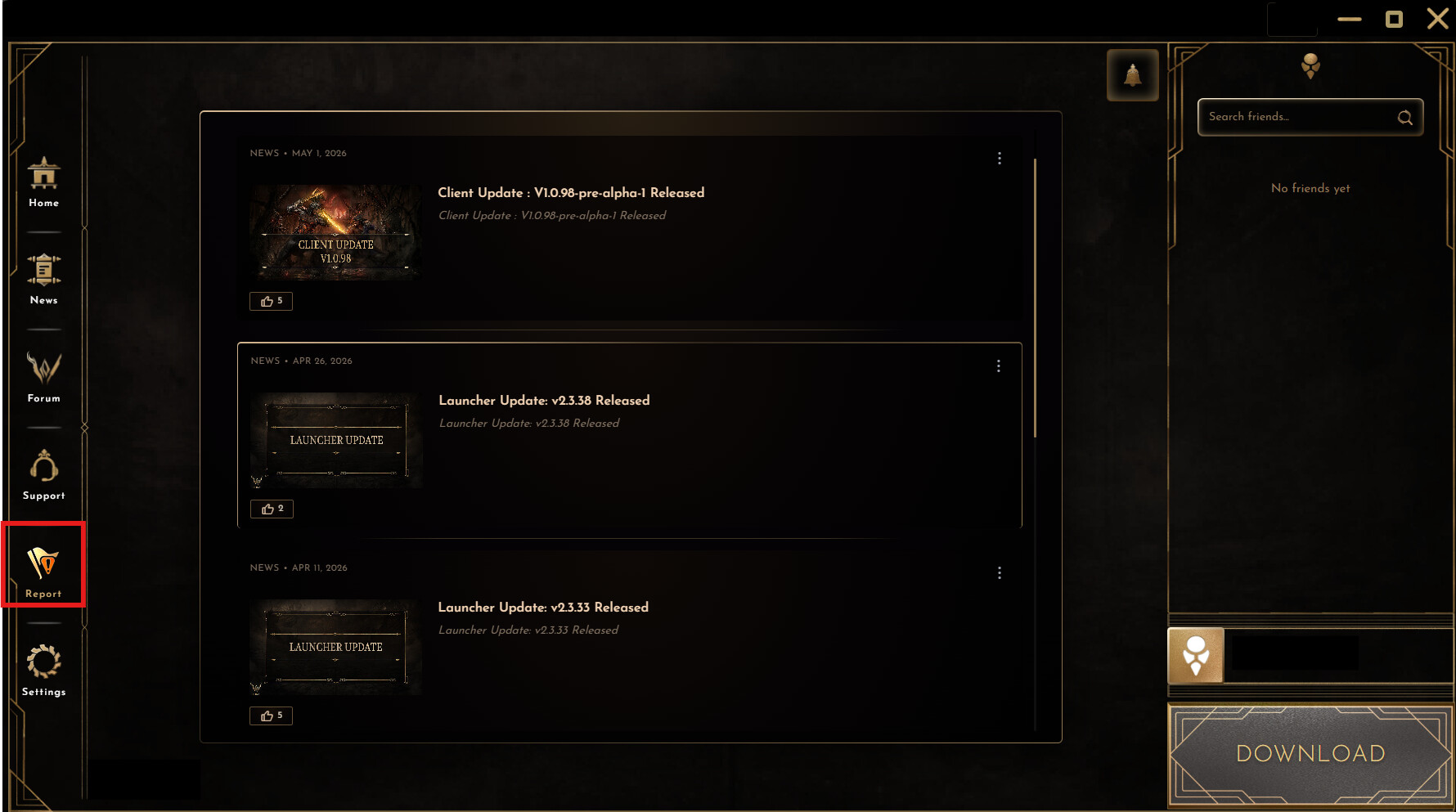
Step 1: Open the Report Menu
Locate and click the Report icon on the left-hand navigation sidebar of the launcher.
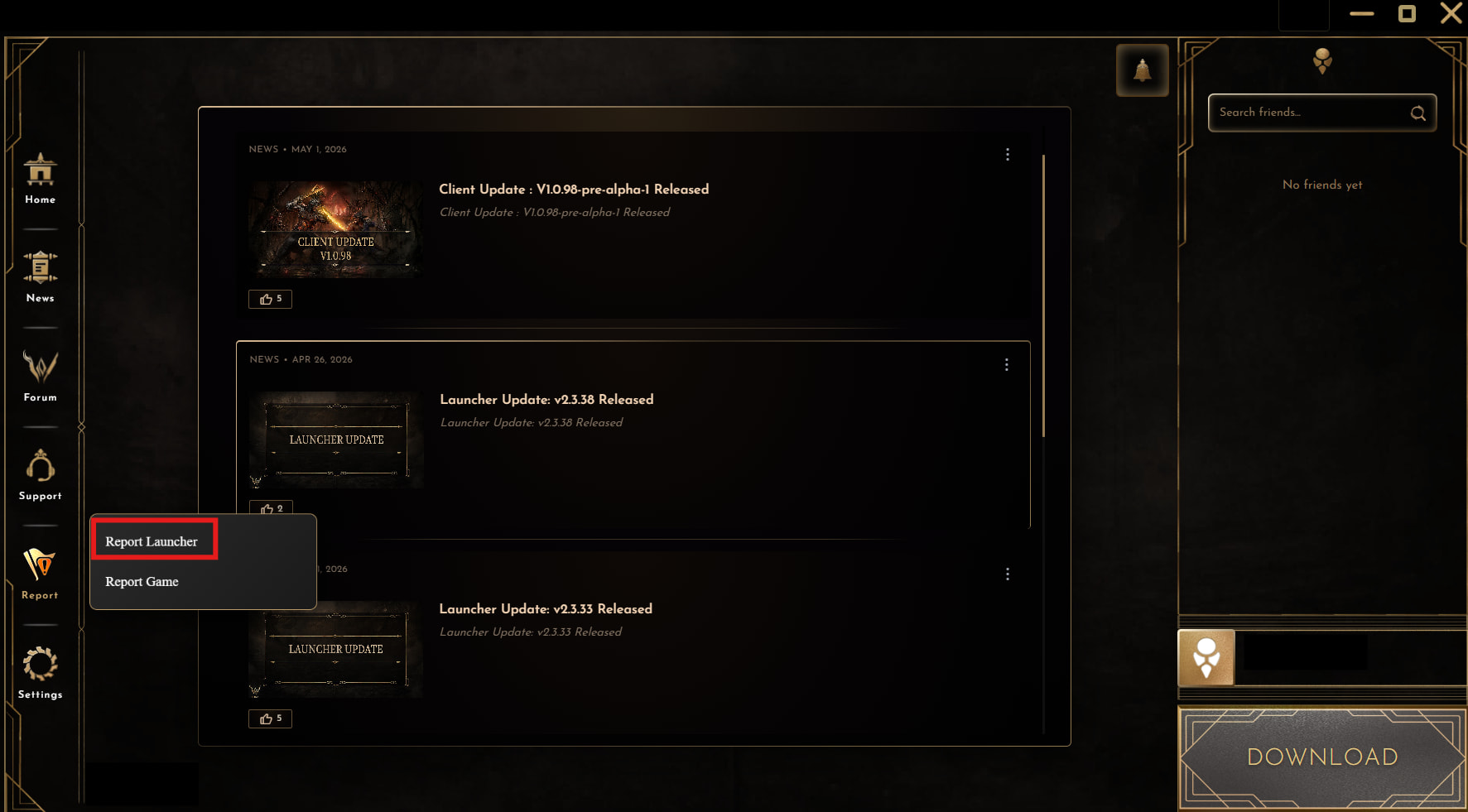
Step 2: Select Report Type
Click on Report Launcher from the pop-up menu that appears.
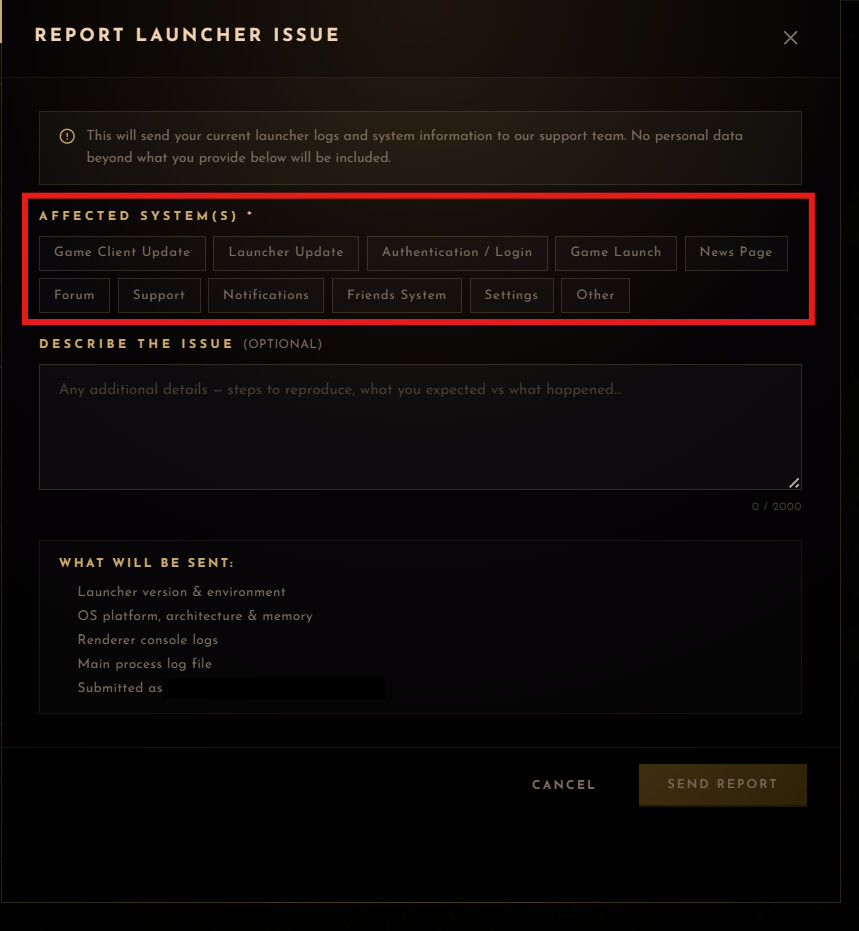
Step 3: Select the Affected System
In the “Report Launcher Issue” window, look under the “Affected System(s)” section. Click on the category that best matches your problem (e.g., Authentication / Login, Launcher Update, Game Launch, Settings).
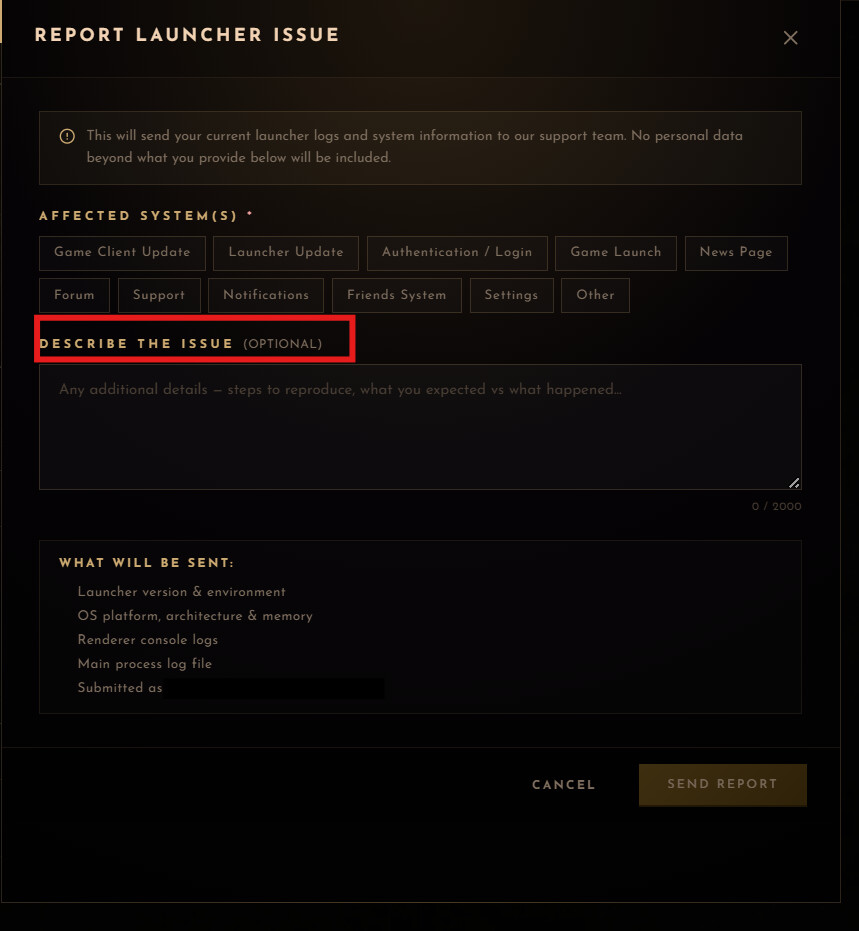
Step 4: Provide Details
In the “Describe the Issue” box, briefly explain the problem. To help our team fix it faster, please include:
- Steps to reproduce the issue.
- What you expected to happen vs. what actually happened.
(Note: Important diagnostic data like your launcher version, OS platform, and console logs are automatically gathered in the “What will be sent” section and attached to your report!)
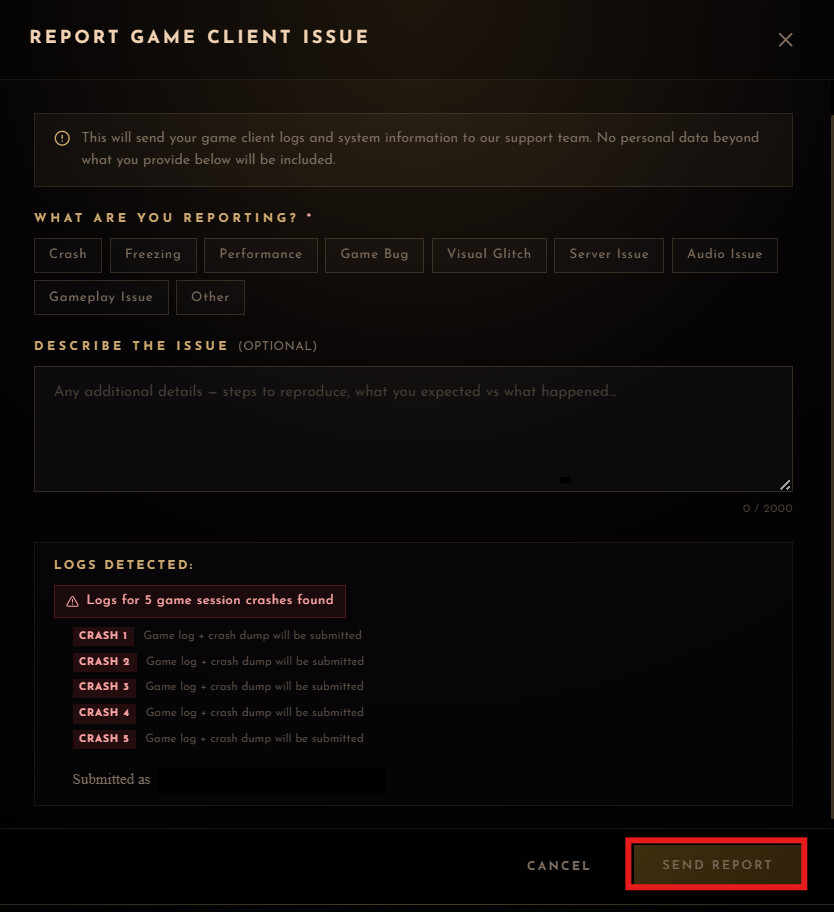
Step 5: Submit Your Report
Click the Send Report button at the bottom right corner of the window to submit your issue.
Examples of Helpful Launcher Descriptions
Example 1: Reporting an Authentication / Login Issue
Expected: I should be logged in and see the home/news dashboard.
What Happened: The launcher gets stuck on an infinite loading spinner and gives a “Connection Timed Out” error after 2 minutes.
Steps to reproduce:
- Launch the launcher and type my account credentials.
- Click the login button.
Example 2: Reporting a Launcher Update / Download Issue
Expected: The update progress bar should reach 100% and apply the patch.
What Happened: The download bar gets stuck completely at 99% and then throws an error, forcing me to restart the process in a loop.
Steps to reproduce:
- Open the launcher to let it check for updates.
- Click the “Update” button when the new version prompt appears.
Example 3: Reporting a Game Launch Failure
Expected: The launcher should minimize and the game client window should open
What Happened: The button changes to “Launching…” and turns grey for 3 seconds, but then it just goes back to normal, and the game never actually opens. No error code pops up.
Steps to reproduce:
- Open the launcher and log in successfully.
- Click the large “START THE GAME” button in the bottom right corner.